2. Starting Buttons
Expect the unexpected: the function init() is called on startup.
So put there all the stuff you want to run on start.
Toolbutton
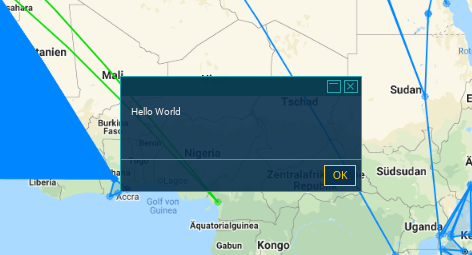
Showing the alert on every startup is annoying. Instead, let's hide it behind a toolbox button—a link below the portal detail view:
class CountPortals implements Plugin.Class {
    init(): void {
        console.log("CountPortals " + VERSION);

        require("./styles.css");

        $("#toolbox").append(
            $("<a>", {
                text: "Count",
                click: () => this.doCount()
            })
        )
    }

    doCount(): void {
        alert("Hello World");
    }
}
The $ symbol represents jQuery, a popular library for HTML manipulation. While modern developers often prefer alternatives, jQuery is already included in IITC, so we use it here to simplify HTML creation.
This code creates an <a> tag with a click handler that calls our new doCount() function.
Toolbar Button
Some users prefer a quick access button on the left side of the map. Use this sparingly—only for features that users will access daily. For this tutorial, let's add one:
First, create an icon. Download an icon and place it in your
/src/directory. We'll use SVG for simplicity and small file size, but any web format works.Import it at the top of
Main.ts:
import * as Plugin from "iitcpluginkit";

import myicon from "./icon.svg";

class CountPortals implements Plugin.Class {
// ...
}- Then create the toolbar button:
class CountPortals implements Plugin.Class {
init(): void {
console.log("CountPortals " + VERSION);
require("./styles.css");
$("#toolbox").append(
$("<a>", {
text: "Count",
click: () => this.doCount()
})
)
const toolbarGroup = $("<div>", {class: "leaflet-bar leaflet-control"})
.append(
$("<a>")
.addClass("leaflet-bar-part")
.css("background-image", 'url("' + myicon + '")')
.css("background-size", "24px")
.click(() => this.doCount())
);
This code creates a toolbar group <div> and a button <a> with your icon, then attaches them to the map container.
Ensure your "autobuild" command is still running. Navigate to http://localhost:8100, update your script, and reload IITC. It's helpful to keep localhost and IITC open in separate tabs.
CSS
Let's keep our code clean by moving styles into the CSS file. You already have styles.css—let's use it:
.mybutton {
   background-image: url("./icon.svg");
   background-size: 24px;
}const toolbarGroup = $("<div>", { class: "leaflet-bar leaflet-control" })
.append(
$("<a>", {
class: "mybutton leaflet-bar-part",
click: () => this.doCount()
})
);You'll see an error message in your terminal because the icon import is no longer needed in Main.ts. Remove this import line:
import * as Plugin from "iitcpluginkit";

import myicon from "./icon.svg";

class CountPortals implements Plugin.Class {
// ...
}
Refactoring
Let's clean up the code and move button creation to a separate function to keep init() easy to read:
class CountPortals implements Plugin.Class {
init(): void {
console.log("CountPortals " + VERSION);
require("./styles.css");
this.createButtons();
}
private createButtons(): void {
$("#toolbox").append(
$("<a>", {
text: "Count",
click: () => this.doCount()
})
)
The private keyword tells the compiler that this function is only used internally. Mark most of your functions as private—it won't affect the final JavaScript but helps identify unused code.